Top 10 AI Tools to Enhance Your PowerPoint Presentations
Updated September 25, 2026 · By liam thorne
AI Tools for PPT: Which Ones Make Editable Slides?
You have a presentation due, but your ideas are still scattered across notes and documents. AI tools for PPT can turn that material into a slide draft before you've chosen a template.
They save time on structure and layout, but you still need to check facts and polish the final deck. The first decision is whether to work inside PowerPoint or create slides in a web app and export them. These 10 names show what each route offers, including one that has shut down.
Benefits of Using AI Tools for PowerPoint Presentations
AI can get you past the blank slide by turning an outline into a sequence of topics. It can suggest layouts, shorten dense text, and give you a starting point for visuals. If your material already lives in documents, a tool that accepts source files may spare you some copying and pasting.
The gains are mostly in the first draft. AI tools for PPT can misread source material, invent a claim, or choose a tone that doesn't fit your audience. Check numbers against the original files, rewrite awkward slides, and make sure charts and images support the point you're making.
AI Tools for PPT: 10 Options Worth Comparing
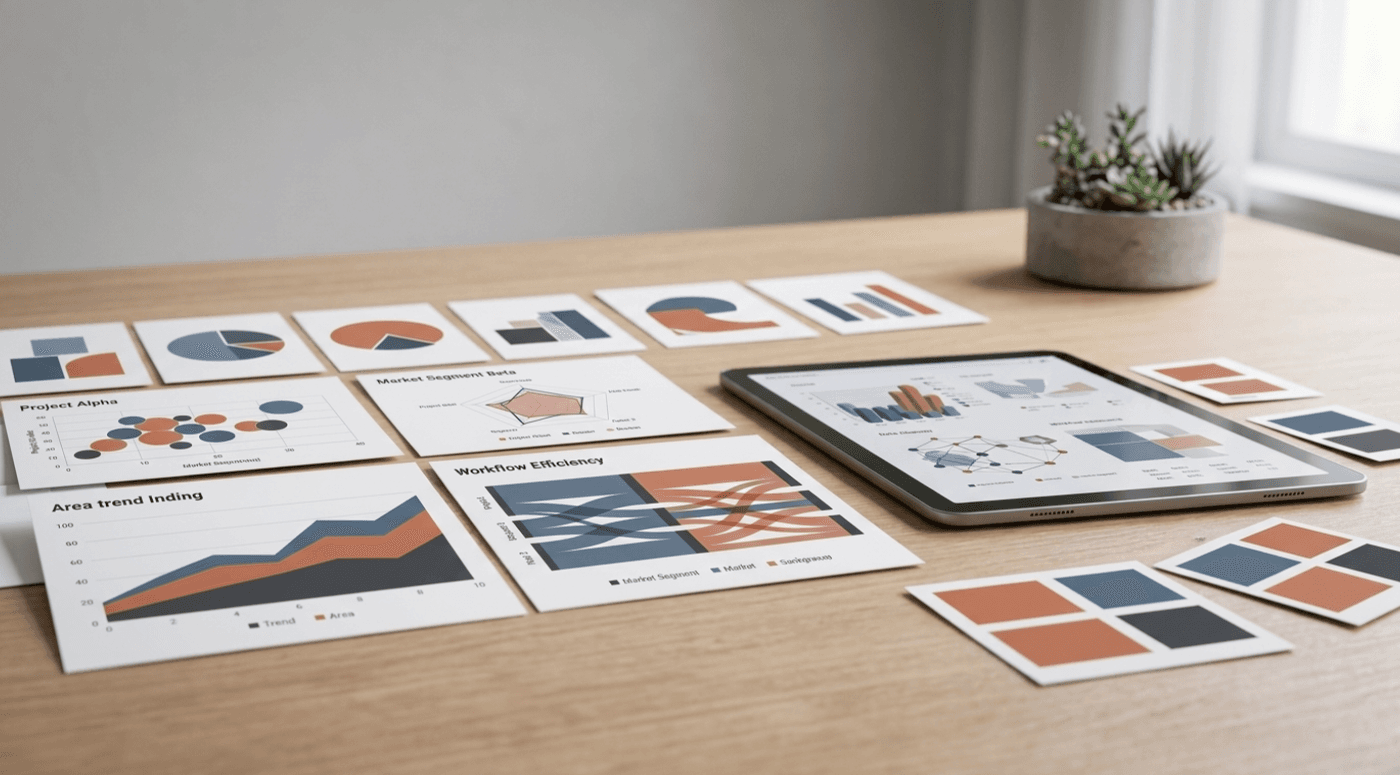
The biggest difference is where your deck lives. Copilot works in PowerPoint, Plus AI creates native presentation files, and SlidesAI starts in Google Slides. Web-based editors add an export step. Before building an important deck, check which features your plan includes and open a test PPTX in PowerPoint.

Microsoft Copilot in PowerPoint
Copilot in PowerPoint can create slides from a prompt or Word document and revise an existing presentation. It can also add speaker n otes and work with brand templates. For teams already using Microsoft 365, that keeps drafting close to their files. Access depends on the plan and organizational setup.
Best for: Microsoft 365 Teams
Try Microsoft Copilot in PowerPoint
Canva
Canva suits marketing decks and visual storytelling, with templates and AI-assisted design tools to help shape a draft. You can download a presentation as a PPTX, then edit it in PowerPoint. Expect to rearrange some elements, and check the exported slides: fonts or layouts may render differently.
Best for: Design-Forward Presentations
Try Canva
Gamma
Gamma is useful when you need a web-based draft quickly. It builds presentations from prompts and supports PPTX and PDF export, including PPTX export on its free plan. Exported layouts can need cleanup, and a static PowerPoint file won't preserve every interactive element. Check the current credit allowance before relying on free use.
Best for: Quick Prompt-to-Deck Drafts
Try Gamma
Beautiful.ai
Beautiful.ai's Smart Slides adjust spacing, alignment, and sizing as you add content. That can help business decks stay consistent without extensive manual formatting. The company offers editable PowerPoint export on Pro plans and above. Check the export type: its image-based PowerPoint export produces static slides rather than editable elements.
Best for: Consistent Slide Layouts
Try Beautiful.ai
Plus AI
Plus AI says it creates native PPTX files and Google Slides presentations. It's worth testing if colleagues need to revise slides in familiar presentation apps instead of receiving a web-only deck. Before committing, make a sample presentation and check how its text, charts, and layouts behave during editing.
Best for: Native Presentation Files
Try Plus AI
SlidesAI
SlidesAI runs inside Google Slides and turns text into slides there. It describes export options that include editable PPTX, making it a candidate for teams that draft in Slides but hand off PowerPoint files. It's a Slides-centered workflow, so test the exported deck if PowerPoint is your final editing environment.
Best for: Google Slides Users
Try SlidesAI
Pitch
Pitch fits teams that build sales or business presentations together. Its pricing page lists Teamspaces and PowerPoint exports, alongside features for shared presentation work. That makes collaboration a reason to consider it, but confirm PPTX availability on your selected plan. Export a real team deck before promising colleagues an editable handoff.
Best for: Collaborative Team Decks
Try Pitch
Prezi AI
Prezi AI is worth considering when a zooming, nonlinear presentation fits your audience better than a conventional slide sequence. That approach can help you move between a big picture and its details. If someone expects a standard PowerPoint deck afterward, verify current export options and test how the presentation translates.
Best for: Nonlinear, Visual Presentations
Try Prezi AI
Presentations AI
Presentations.AI is a candidate when your starting material is more substantial than a prompt. Test the formats you need, such as a PDF, Word file, spreadsheet, web page, or outline, against its current upload options. Then inspect the generated slides and confirm today's PPTX export and free-use limits before committing.
Best for: Evaluating File-to-Deck Workflows
Try Presentations AI
Fotor
Fotor Slides is a strong candidate when visual aesthetics, customizable design elements, and built-in AI image generation take priority over raw document conversion. Test its text-to-slide workflow by inputting topic prompts or uploading supported outline files (.pptx, .docx, .pdf, .txt). Evaluate how well it configures slide layouts, tone, target audience, and stock media elements. Finally, review the visual polish of the generated deck and check current free-tier credit usage and PPTX export options before deciding.
Best for: Design-Driven, Media-Rich Presentations
Try FotorHow to Choose the Right AI Presentation Tool
Start with the handoff: where must the finished deck be edited? A presentation that looks good in a browser may take work to fix in PowerPoint. When comparing AI tools for PPT, use one real assignment rather than a polished sample from a product page.
- Check whether the tool edits slides natively in your preferred app or exports a PPTX. Open the result and try editing text and charts.
- Bring a permitted source file and see whether the tool handles its tables, images, and structure. Check brand controls and collaboration features too.
- Compare the plan you would actually buy, including export access. Review the provider's data terms before uploading confidential workplace material.
Finally, proofread the deck against its sources and present it once. A slide that reads well on your screen may be too dense for an audience.
Choose the Tool That Fits the Handoff
If PowerPoint editing comes first, test Copilot or Plus AI. Gamma can produce a fast draft, while Canva and Beautiful.ai give design-conscious teams different ways to shape slides. Your best choice depends on the file your colleagues must receive, not the first draft's appearance.
AI will likely get better at using source files and brand rules. For now, human review is what turns a quick draft into a presentation you can stand behind.